

From the Hub Dashboard
1
Navigate to your organization or personal account
- Click on your organization or personal account in the left sidebar
- Go to the Graphs section
2
Click "Create Graph"
- Enter a unique name for your graph (this becomes the slug)
- The name must follow slug format (lowercase, hyphens allowed)
- Click Create Graph
Graph names must be unique within your organization or personal account. They
serve as both display names and URL slugs.
What Gets Created
When you create a new graph, Hub automatically sets up:- Main Branch: The primary collaborative workspace with real-time editing
- Empty Schema: Ready for GraphQL type creation and organization
- Real-time Collaboration: Multiple users can edit simultaneously
- Collaborator Access: Automatic permissions based on your organization settings
Importing Existing Schemas
Hub provides multiple ways to import existing GraphQL schemas into your new graph. When you first open a new graph, you’ll be presented with three options: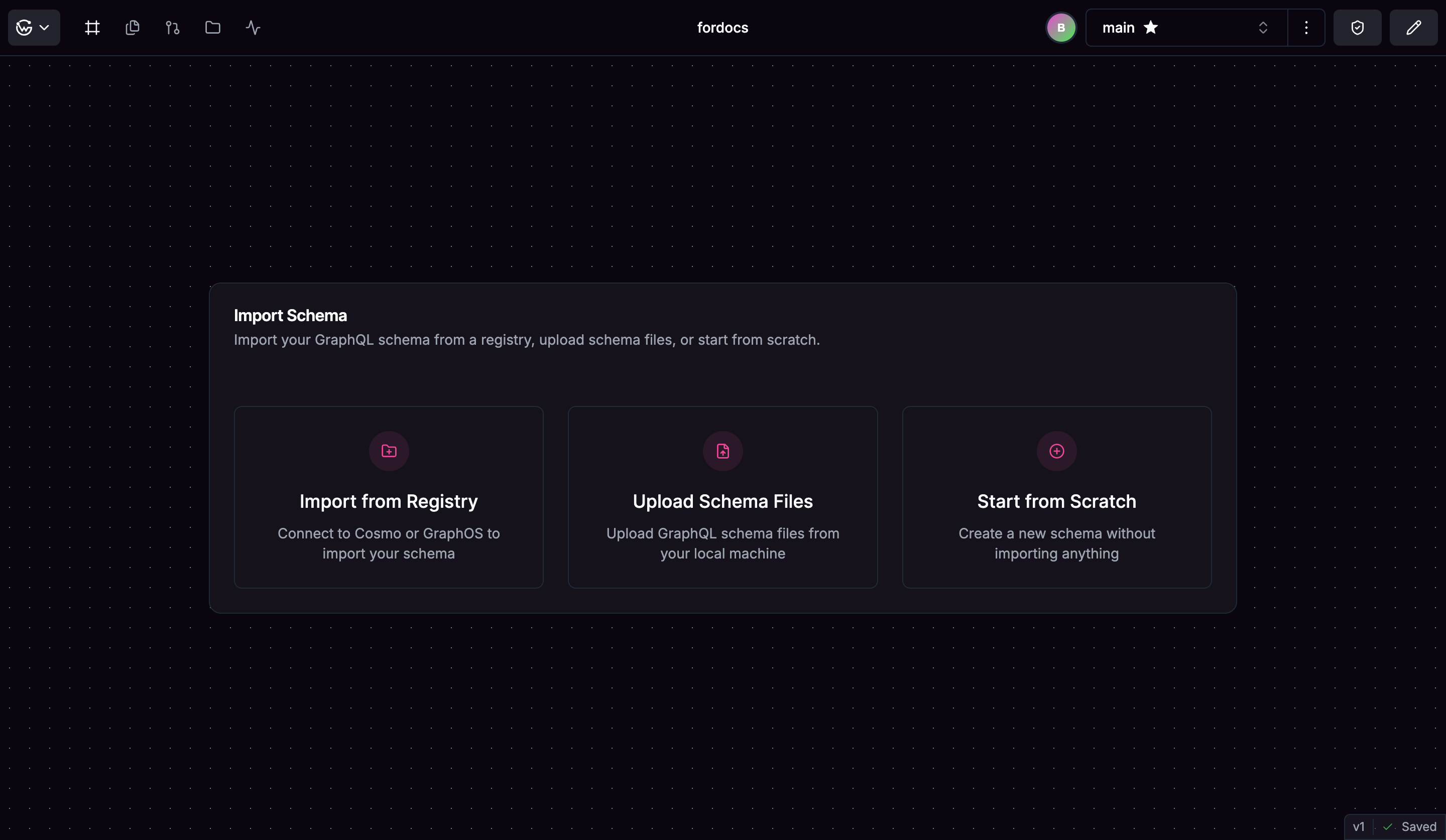
From Registry
Import schemas directly from Cosmo or Apollo GraphOS
Upload Files
Upload .graphql or .graphqls files from your computer
Start from Scratch
Begin with an empty schema and build types manually
Upload Schema Files
Import GraphQL schema files directly from your file system:1
Select "Upload Files"
2
Drag and drop
or browse for
.graphql or .graphqls files3
Configure schema names
- Hub automatically generates names from file names
- Edit names to match your schema organization
- Names must be valid slugs
4
Import
Hub processes files and sets up your GraphQL schemas
Start from Scratch
Begin with an empty schema and build it incrementally:1
Select "Start from Scratch"
2
Use the creation tools
- Create Types/Fields: Add GraphQL types and fields
- Create Schemas: Organize your GraphQL types
- Define Relationships: Connect types and establish data relationships
Starter Templates
For new users, Hub automatically creates a starter template called “hr-platform” that demonstrates:- Multiple Schemas:
users,hr,payrolldomain schemas - GraphQL Patterns: Type relationships, field organization, schema structure
- Real Schema Examples: Complete HR domain with Users, Departments, Salary, Benefits